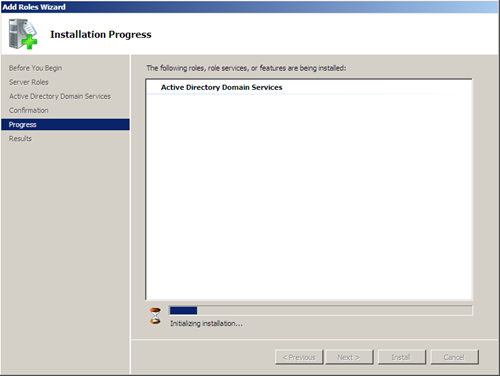
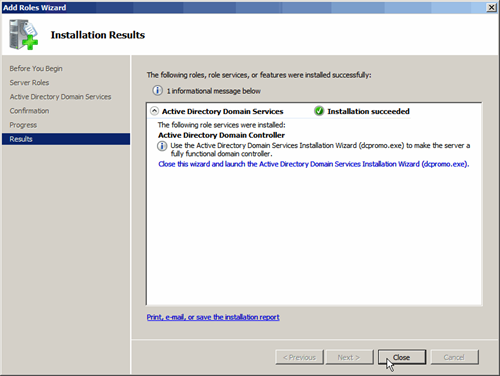
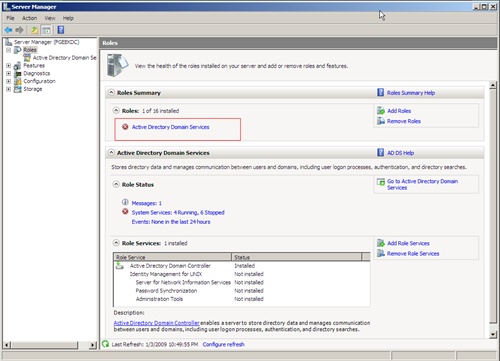
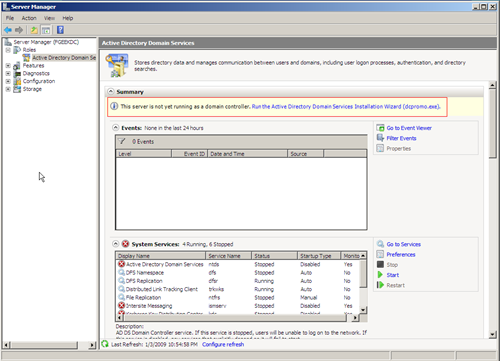
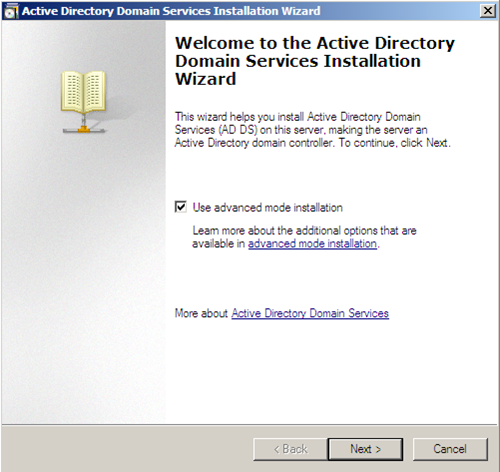
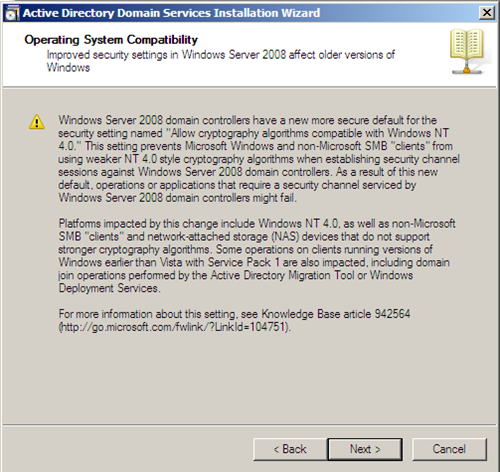
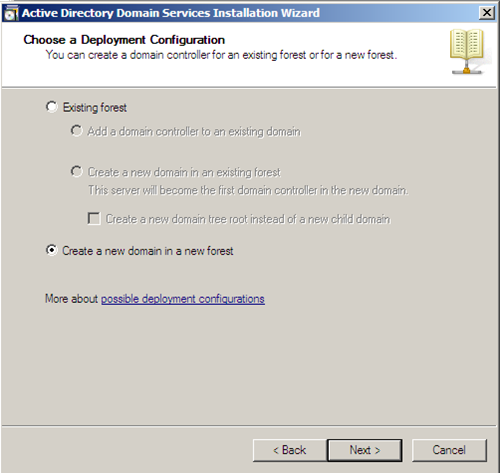
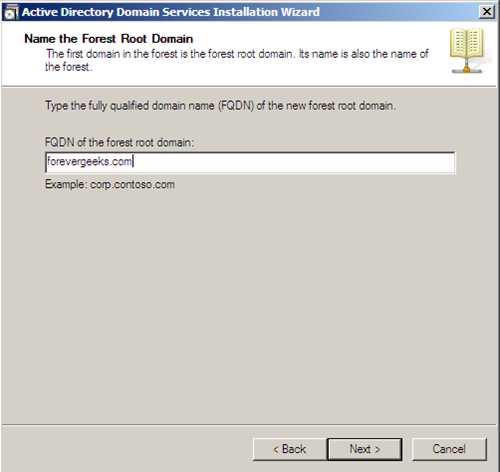
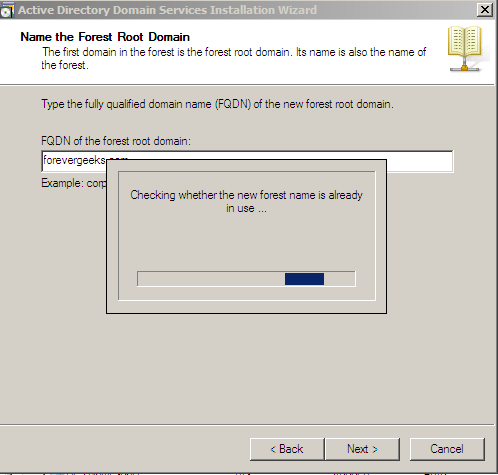
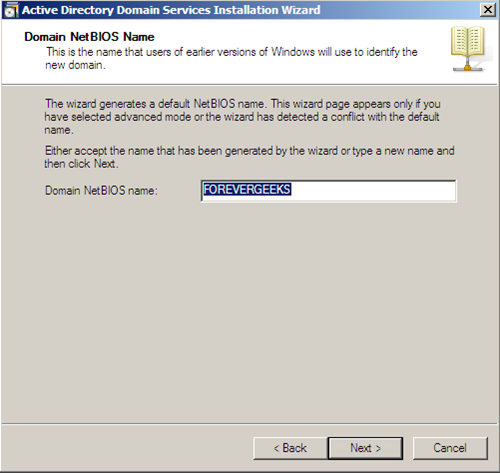
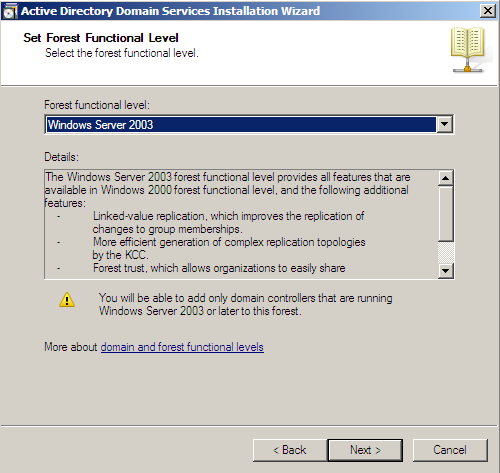
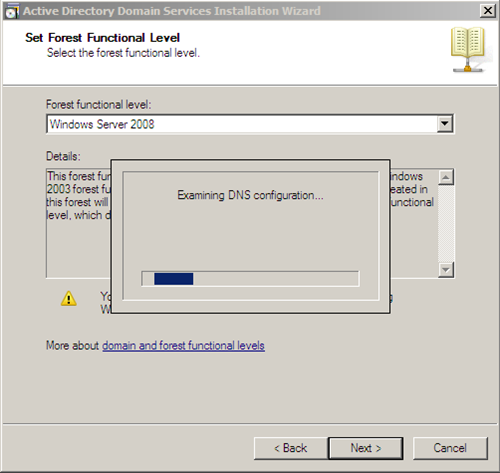
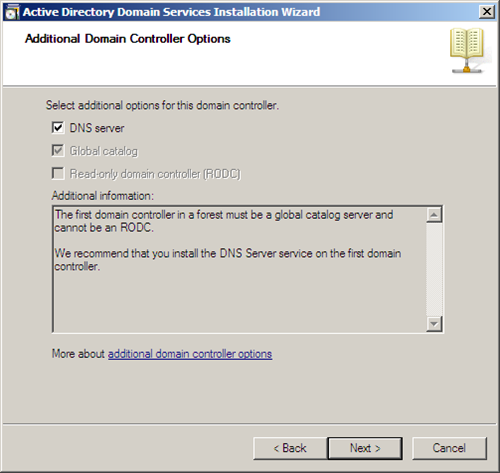
In this article I will explain about the ADDS and It's roles why they are required and what are the other
roles and why they are required .
Active Directory Domain Service: Active Directory Domain services provides functionality of an Identity and Access(IDA) solution for enterprises Network. or you can say it's single point of Management from where you can control all objects such as user, groups , computers, and other objects in an enterprises network as well as in small business IT company. Using Active you not only maintain user, groups, computers but Authorizations, Auditing and permission also on shared network Resources. In Active
Directory when a user or a computer logs on to the domain. Kerberos protocol is used to Authenticate and checks identity and issues a package of information called "Ticket Granting Ticket" before a user performs a task such as connecting to the server to request a document, Kerberos is sent to the domain controller along with TGT that identifies the Authenticated user then issues another package of information called "Service Ticket"this ticket identifies and Authenticated to the server .After that user will present that Ticket to the server then server will accept that Ticket as a proof and user will be Authenticated . once these transaction completed user will be able to access resources in entire domain, These transaction results in single network log on.
Active Directory lightweight Directory Services(Application): Formally known as " Active Directory
Application Mode" provides support for directory enabled Application I would ADLDS is really a subset
of ADDS because both based on same core code. ADLDS let's you locate organizational , individual and
other resources such a file and device on internet or in intranet. In current scenario there are lot aaplication
use ADLDS for example Microsoft Office. People get confused when they read Directory Enabled application , Directory Enable application typically leverage the storage and search capability of directory
service. one more good example of Directory Enabled application would be one that provides a rich set of
user specific information querying the directory service for the pertinent information . It can give you the information about users, group, all users on a project.
Active Directory Certificate Services: Active Directory Certificate Services can be used for multiple pur
poses such as set up a certificate authority for digital certificate as a part of Public Key Infra(PKI) that binds
identity of a person or a device. It can also be used to authenticate users ,computer, devices, web based authentication . you can use it for security purpose as well , including wireless network, Virtual Private Network(VPN) , Internet Protocol Security (IP Sec) and for Encryption file System (EFS) available in
windows vista and in windows 7 and for digital Signature too. now the question is where we can use this certificate services for instance you are writing a code for your software you can use it there , you also can
sign your hardware driver no one will be able to make changes to that driver. you might have seen HTTPS or SSL they use certificate service for security .
Active Directory Rights Management Service: Active Directory Right Management Service is an information Protection Service. By using this service you define which user have access to which document
or folder and what permission he or she has been given by Server Administrator . You might have seen in a organization user have access to resources according to their designation. Some of them have no access some of them can read only some of them can have access of Print the document . some of them can modify the document by doing so you can have integrity of the data you generate . so this service is all about of allow or disallow users online or offline access to resources for inside or outside users.
Active Directory Federation Services: Each organization has its own identities . About this service I would say it's partnership , An organization can extend it's IDA across multiple Platforms . Organizations
project and accept identities from other organization as well. Users are Authenticated in one network will
be able to access data in other network this process also know as a single sign on. Federation is established
between two organizations by establishing trust between two security realms.
roles and why they are required .
Active Directory Domain Service: Active Directory Domain services provides functionality of an Identity and Access(IDA) solution for enterprises Network. or you can say it's single point of Management from where you can control all objects such as user, groups , computers, and other objects in an enterprises network as well as in small business IT company. Using Active you not only maintain user, groups, computers but Authorizations, Auditing and permission also on shared network Resources. In Active
Directory when a user or a computer logs on to the domain. Kerberos protocol is used to Authenticate and checks identity and issues a package of information called "Ticket Granting Ticket" before a user performs a task such as connecting to the server to request a document, Kerberos is sent to the domain controller along with TGT that identifies the Authenticated user then issues another package of information called "Service Ticket"this ticket identifies and Authenticated to the server .After that user will present that Ticket to the server then server will accept that Ticket as a proof and user will be Authenticated . once these transaction completed user will be able to access resources in entire domain, These transaction results in single network log on.
Active Directory lightweight Directory Services(Application): Formally known as " Active Directory
Application Mode" provides support for directory enabled Application I would ADLDS is really a subset
of ADDS because both based on same core code. ADLDS let's you locate organizational , individual and
other resources such a file and device on internet or in intranet. In current scenario there are lot aaplication
use ADLDS for example Microsoft Office. People get confused when they read Directory Enabled application , Directory Enable application typically leverage the storage and search capability of directory
service. one more good example of Directory Enabled application would be one that provides a rich set of
user specific information querying the directory service for the pertinent information . It can give you the information about users, group, all users on a project.
Active Directory Certificate Services: Active Directory Certificate Services can be used for multiple pur
poses such as set up a certificate authority for digital certificate as a part of Public Key Infra(PKI) that binds
identity of a person or a device. It can also be used to authenticate users ,computer, devices, web based authentication . you can use it for security purpose as well , including wireless network, Virtual Private Network(VPN) , Internet Protocol Security (IP Sec) and for Encryption file System (EFS) available in
windows vista and in windows 7 and for digital Signature too. now the question is where we can use this certificate services for instance you are writing a code for your software you can use it there , you also can
sign your hardware driver no one will be able to make changes to that driver. you might have seen HTTPS or SSL they use certificate service for security .
Active Directory Rights Management Service: Active Directory Right Management Service is an information Protection Service. By using this service you define which user have access to which document
or folder and what permission he or she has been given by Server Administrator . You might have seen in a organization user have access to resources according to their designation. Some of them have no access some of them can read only some of them can have access of Print the document . some of them can modify the document by doing so you can have integrity of the data you generate . so this service is all about of allow or disallow users online or offline access to resources for inside or outside users.
Active Directory Federation Services: Each organization has its own identities . About this service I would say it's partnership , An organization can extend it's IDA across multiple Platforms . Organizations
project and accept identities from other organization as well. Users are Authenticated in one network will
be able to access data in other network this process also know as a single sign on. Federation is established
between two organizations by establishing trust between two security realms.


.jpg)